Setting Up Your Own Router on iiNet, TPG & Opticomm: PPPoE, VLAN 2, and Why Every Router Calls It Something Different
Oct 15, 2026
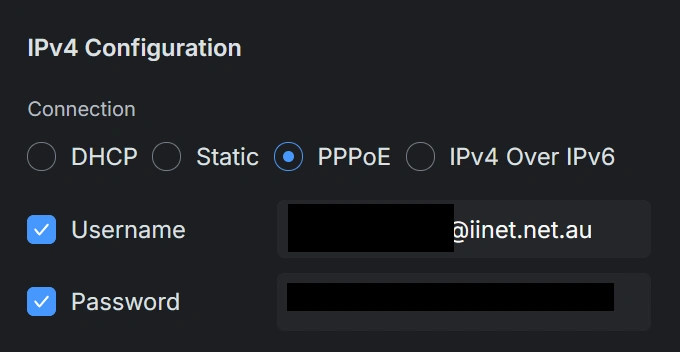
If you've ever tried to ditch the router your ISP gave you and use your own gear on iiNet or TPG, you've probably hit this wall: you enter your PPPoE username and password exactly as instructed, and… nothing. No internet. Then you find a forum post from 2019 telling you that you also need to set VLAN 2. Cool. Thanks for the heads up, nobody.
And then the real fun begins — because when you go looking for that VLAN setting in your router, it's called something completely different depending on the brand.
Why this matters for third-party routers
ISP-supplied routers come pre-configured. They know what iiNet and TPG expect, so they just work. The moment you plug in your own Asus, TP-Link, Netgear, Ubiquiti, or whatever, you're on your own — and the settings the ISP expects aren't always obvious, especially when your router decides to rename everything.
Why PPPoE?
iiNet and TPG (both under the TPG Telecom umbrella) still use PPPoE (Point-to-Point Protocol over Ethernet) to authenticate your connection. That means your router can't just grab an IP via DHCP like most modern NBN setups — it has to "dial in" with a username and password.
iiNet: usually your @iinet.net.au account
TPG: usually your @tpg.com.au account
The password is whatever you set when you signed up.
What's VLAN 2, and do you actually need it?
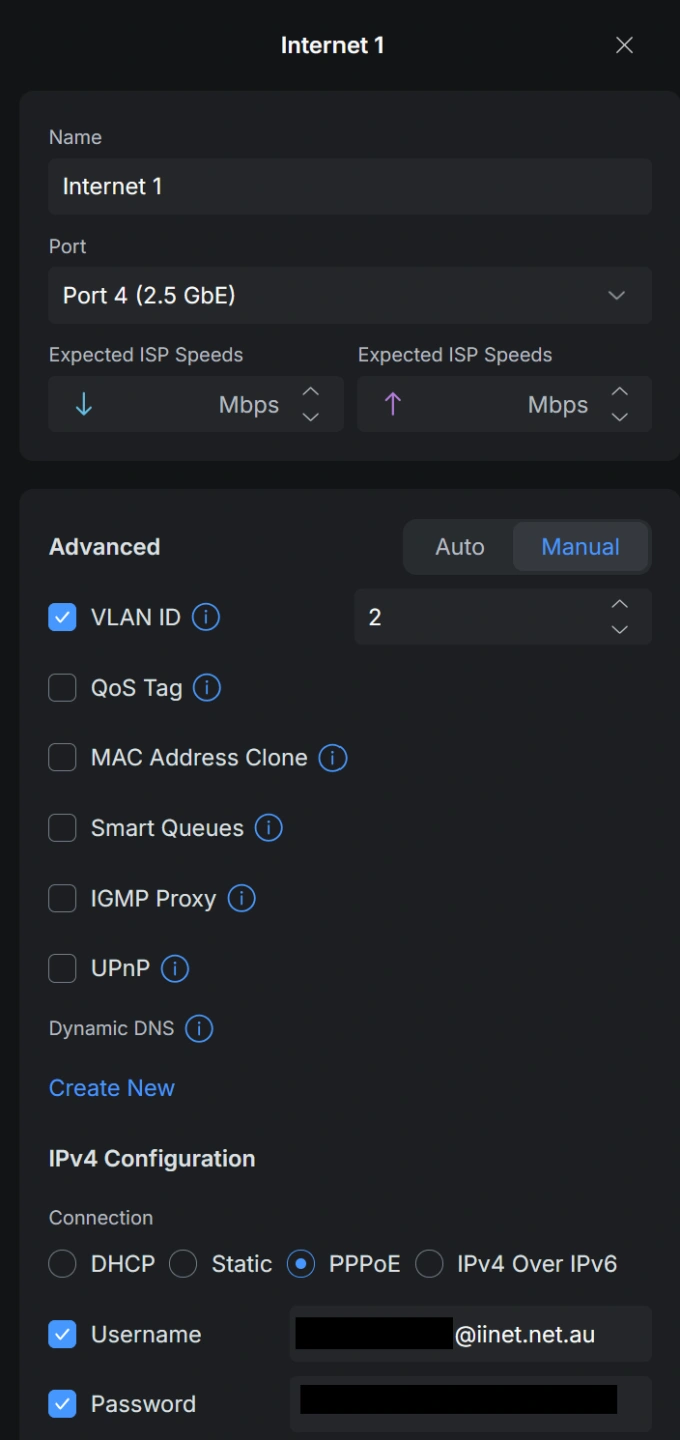
VLAN tagging is how the ISP separates different types of traffic on the same physical line. For iiNet and TPG, your internet traffic needs to be tagged as VLAN ID 2 before the PPPoE handshake will even work. No tag, no connection. There is some conflicting advice about this so it is recommended to try with or without the VLAN tagging. If you are connected and online you do not need to change any settings.
TPG FTTH also uses PPPoE, but VLAN requirements can vary. On FTTN/FTTB you'll also need a router that supports VDSL2 and set the DSL mode accordingly. We have had clients who have the username and password correct, but only need to enable this 'VLAN 2' setting.
Ubiquiti Unifi settings for an iiNet customer:
The naming nightmare
This is where it gets stupid. Same setting, five different names — and sometimes in a completely different part of the menu:
PPPoE might be called:
Connection Type: PPPoE
WAN Type: PPPoE
Mode: WAN → Connection Type: PPPoE
VLAN 2 might be called:
VLAN ID
802.1q Tagging
VLAN Tagging
IPTV / VLAN (looking at you, TP-Link)
"Enable VLAN" checkbox hiding under Advanced
And it's not always where you'd expect:
ASUS: Not in WAN settings. It's under LAN → IPTV, with fields called Internet VID and Internet PRIO.
TP-Link: Under Advanced → Network → IPTV/VLAN. Enable it, set Mode to Custom, then fill in Internet VLAN ID and Internet VLAN Priority.
DrayTek: Under WAN → General Setup, field called VLAN Tag. (Actually sensible, for once.)
Netgear: Under LAN → VLAN Settings, assigned per wired port.
Ubiquiti/UniFi: VLANs are created under Settings → Networks as virtual networks — a completely different mental model.
VLAN Priority (set to 0 or Disable) might be called:
802.1p
VLAN Priority
Priority ID
So the actual settings are simple — find the VLAN/802.1q option, set VLAN ID = 2, Priority = 0 — but finding them is a scavenger hunt, and most online help doesn't account for the fact that five brands use five terms in five different places.
Username & password — which ones?
You need your broadband login, not your Toolbox (iiNet) or My Account (TPG) credentials. Those are for managing billing and services on the website. The PPPoE login is the one that looks like yourname@iinet.net.au — usually in your welcome email or on your bill. Sometimes an old toolbox password will still work. Some services only need the username to be corect.
They're often the same email and password, but conceptually they're two different logins. Worth knowing before you spend 45 minutes troubleshooting the wrong thing.
PPPoE PROVIDERS (username + password needed):
iiNet — PPPoE on most NBN types; also PPPoE on Opticomm/RedTrain FTTH (some RedTrain locations use IPoE)
TPG — PPPoE for most NBN connections
Vodafone — PPPoE on Opticomm connections; also listed for NBN
Internode — listed as PPPoE across connection types
Dodo — PPPoE on FTTN and HFC
Exetel — older customers may still have PPPoE connections
Southern Phone — PPPoE specifically for FTTN and FTTB users
More (pre-June 2025) — services activated before 2 June 2025 still use PPPoE with supplied credentials
AGL — listed as PPPoE
Flip — listed as PPPoE
Moose NBN — listed as PPPoE
IPoE / DHCP PROVIDERS (no credentials needed):
Aussie Broadband — IPoE/DHCP
Superloop — IPoE/DHCP; only supports IPoE for most NBN customers now
Leaptel — IPoE/DHCP on NBN (uses DHCP on Opticomm)
Telstra / Belong — IPoE/DHCP
Optus — IPoE/DHCP
SpinTel — moved to IPoE; PPPoE only as a fallback workaround for BYO modems
More (June 2025+) — new services from 2 June 2025 use IPoE, no credentials required
Origin Broadband — listed as IPoE/DHCP
Tangerine — older customers may have PPPoE connections
Swoop — IPoE/DHCP (also offers Flexible PPPoE)
MATE — listed as IPoE/DHCP
amaysim — listed as IPoE/DHCP
Buddy Telco — listed as IPoE/DHCP
GoTroppo — listed as IPoE/DHCP
OPTICOMM NOTE:
Opticomm is a separate fibre network from nbn, and the authentication method can vary by provider and even by location. iiNet and Vodafone both use PPPoE on Opticomm connections. However, Leaptel uses DHCP/IPoE on Opticomm, so it's not universal across all providers on that network. The Huawei HG8546M NTD units common in Opticomm buildings are usually configured for PPPoE with VLAN 1 rather than VLAN 2.
PRACTICAL TAKEAWAY:
If you're bringing your own router and the provider isn't on the obviously-IPoE list, assume PPPoE with VLAN tagging until proven otherwise. This is exactly the kind of thing we handle on-site, pulling the config off your old router so you don't have to play guess-the-VLAN.
While you're reading — let's fix your smart TV too
A lot of the buffering, lag, and "why is Netflix taking forever to load" complaints people blame on their internet are actually a Wi-Fi problem. Smart TVs are notorious for it — they're often tucked behind a wall, competing with a dozen other devices, and running on cheap Wi-Fi chips.
When we're on-site setting up your router, we can also run Ethernet cables to your smart TV and other fixed devices (consoles, desktops, set-top boxes). A wired connection means:
No buffering on 4K streaming
Lower latency for gaming
One less device clogging up your Wi-Fi
Rock-solid reliability instead of "it works most of the time"
It's a small job that makes a massive difference, and it pairs perfectly with a proper router install. You get the network configured correctly and the devices that matter most running on a connection that won't let you down.
So if you're sick of fighting with VLAN settings, renamed menus, and a smart TV that stutters every time you hit play — get in touch. We'll sort the lot.